
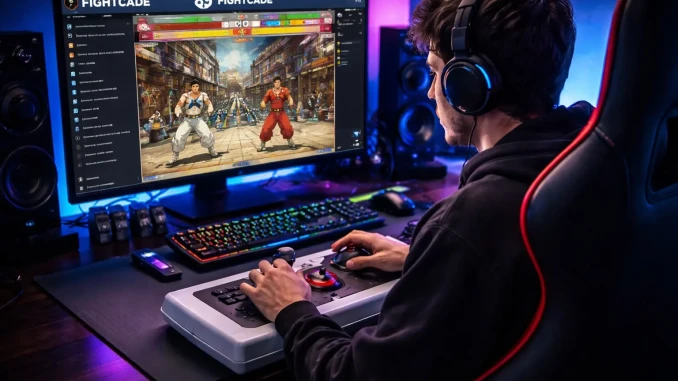
If you love classic arcade fighting games, there is a good chance you have heard about Fightcade. For many retro gaming fans, Fightcade has become the best way to relive the golden age of arcade fighters online.
Games like Street Fighter III: Third Strike, Super Street Fighter II Turbo, The King of Fighters, and Darkstalkers are still played every day by thousands of players around the world.
The best part? You can play them online with rollback netcode that feels surprisingly close to the original arcade experience.
In this guide, we will walk through how to install Fightcade and start playing on your computer.
What Is Fightcade?
Fightcade is an online platform designed specifically for retro fighting games and arcade titles. It allows players to connect, compete, and practice using arcade emulation with built-in online multiplayer.
Instead of playing alone on an emulator, Fightcade lets you:
• Play classic arcade games online
• Challenge players from around the world
• Watch live matches
• Practice in training mode
• Join game communities and chat
The platform uses the FinalBurn Neo emulator, which is optimized for arcade games and works very well with rollback netcode.
This means online matches feel smooth even when players are in different countries.
What You Need Before Installing Fightcade
Before installing Fightcade, make sure you have a few basic things ready.
First, you need a computer running Windows, macOS, or Linux. Most modern computers can run Fightcade easily because the games are very lightweight.
You will also need:
• A keyboard or game controller
• A stable internet connection
• Enough storage for a few small game files
Most arcade ROM files are very small compared to modern games, so space is rarely a problem.
Step 1: Download Fightcade
The first step is to download the official Fightcade client.
Go to the official Fightcade website and download the installer for your operating system.
Once the file downloads:
- Open the installer
- Follow the installation steps
- Choose where you want Fightcade installed
The installation process is very fast and usually takes less than a minute.
After installation finishes, you will see the Fightcade launcher on your computer.
Step 2: Create Your Fightcade Account
When you open Fightcade for the first time, you will need to create an account.
This account allows you to:
• Join game lobbies
• Track your matches
• Chat with other players
• Save your settings
To create an account:
- Click Register
- Enter a username
- Enter your email
- Create a password
After registration, log into the Fightcade client.
You will now see the main lobby interface.
Step 3: Download the Games Automatically
One of the biggest improvements Fightcade added in recent years is automatic game downloading.
In older versions, players had to manually search for ROM files. Today, the process is much easier.
Once you join a game lobby, Fightcade can automatically download the correct files using the community downloader.
To do this:
- Join a game lobby (for example Street Fighter III: Third Strike)
- If the game files are missing, Fightcade will detect it
- The downloader will install the correct ROM automatically
Within a few minutes, the game will be ready to launch.
Step 4: Configure Your Controls
Before playing your first match, you should configure your controls.
Fightcade supports:
• Keyboard
• USB controllers
• Arcade fight sticks
• Console controllers
To set your controls:
- Launch a game
- Open the input settings
- Map each button to your controller
Most fighting games use six buttons:
• Light Punch
• Medium Punch
• Heavy Punch
• Light Kick
• Medium Kick
• Heavy Kick
Once everything is mapped, save your configuration.
Step 5: Start Your First Match
Now comes the fun part.
To play a match:
- Join a game lobby
- Look at the list of players
- Challenge someone by double-clicking their name
If they accept the match, the emulator launches and the game begins.
Fightcade will automatically connect both players using rollback netcode.
You can also watch other players fight before jumping into your own matches.
Tips for the Best Fightcade Experience
To get the best performance, keep a few things in mind.
Use a wired internet connection whenever possible. Wi-Fi can introduce extra latency.
Close heavy applications running in the background. This keeps your emulator running smoothly.
Play players close to your region when possible. Lower distance usually means better connection quality.
Fightcade also shows a connection quality indicator so you can quickly see if a match will be stable.
Why Fightcade Is So Popular
Fightcade has become the hub for retro fighting games online.
Even games released more than 30 years ago still have active communities.
You can jump into a lobby at almost any time and find players ready to compete.
For retro fighting game fans, it is one of the best ways to keep these legendary arcade titles alive.
Final Thoughts
Fightcade is one of the easiest ways to experience classic arcade fighting games online.
The installation is simple, the community is active, and the rollback netcode makes matches feel smooth and responsive.
If you enjoy classic fighters or want to sharpen your skills against real players, Fightcade is absolutely worth trying.
Once you install it, you may quickly discover why thousands of players still log in every day to battle in games that defined the golden age of fighting games.
And who knows… your next opponent might already be waiting in the lobby.